
How to Add Team Time to Your Home Screen or Desktop

When you check a roster several times a week, typing a web address each time gets old. You can save Team Time to your phone's home screen or your computer's app launcher so the site is easier to open. It is still the Team Time website, with the same sign-in and internet requirements; saving a shortcut does not create a separate native app or add offline scheduling.
Start by opening the Team Time link your organisation gave you. If you have an invitation or access link, use that link to sign in first. Then follow the steps for your device. Browser labels can change, so look for the closest equivalent if a menu is worded differently.
Android: create a Chrome home screen shortcut
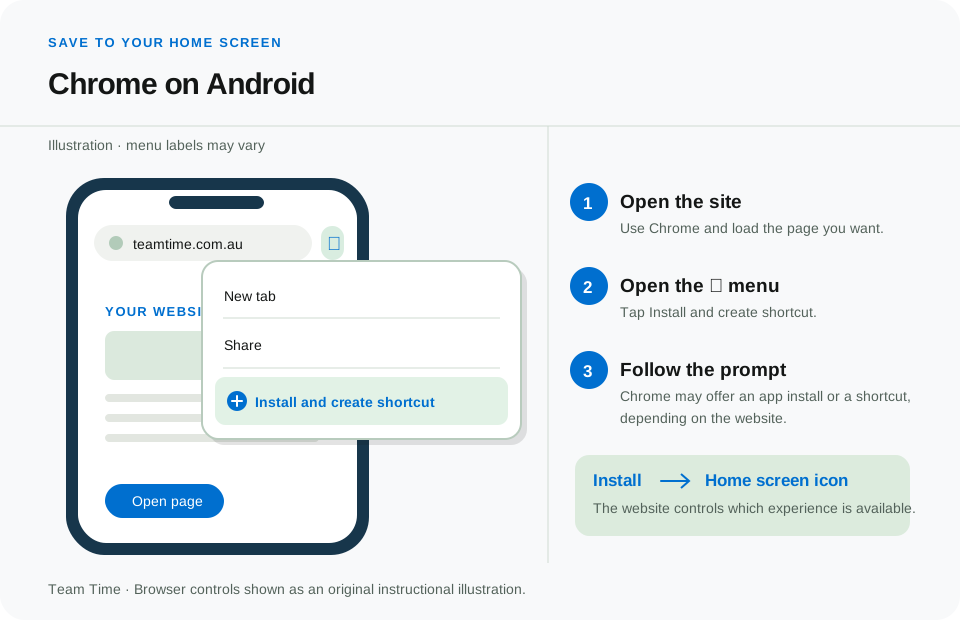
Open Team Time in Chrome on your Android phone or tablet. Tap the three-dot More menu beside the address bar. Google currently places shortcut controls under Install and create shortcut. Choose Create shortcut, edit the name if you like, and tap Add. The icon will appear on your home screen and open the site in Chrome.
Some sites and devices may show an Install option instead. Follow the prompt shown by your browser. The label describes how Chrome saves the site; it does not mean every web feature works offline. Open the new icon once and check that it reaches the right Team Time page before relying on it during a shift.
If you save the public landing page, the shortcut may take you there rather than to your upcoming shifts. For a quicker route to work, open the signed-in page you use most often before creating the shortcut. If the page redirects after sign-in, test the saved icon to make sure its destination is useful.
 Opens full-size image in a new tab
iPhone or iPad: use Safari or Chrome
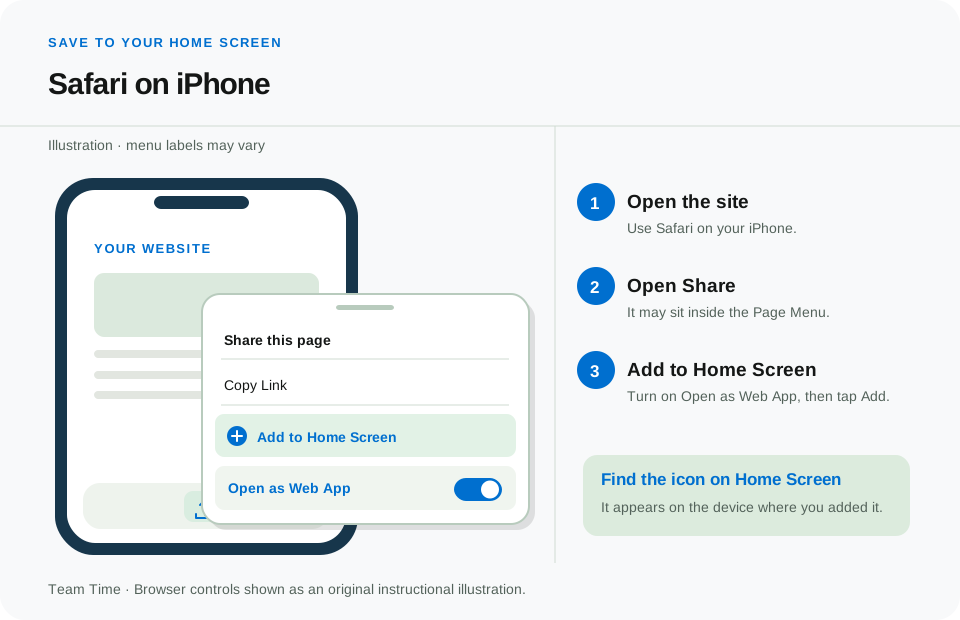
In Safari on iPhone, open Team Time, tap the page menu or Share button, then choose Add to Home Screen. You may need to scroll down the share list. Give the icon a name and tap Add. Apple's current instructions also show an optional Open as Web App switch. You can leave that off if you prefer the familiar browser view; either way, Team Time remains a website that needs a connection for normal use.
In Chrome on iPhone or iPad, open the Team Time page, tap Share beside the address bar, choose Add to Home Screen, edit the details, and tap Add. If you do not see the option, check the share menu or use Safari's steps. The position of a browser's buttons can differ between phone sizes and software versions.
After adding the icon, open it and confirm that you can sign in and see your schedule. Saving a home screen icon does not sign you in permanently; your normal security settings and session expiry still apply.
 Opens full-size image in a new tab
Computer: save Team Time from Chrome, Edge or Safari
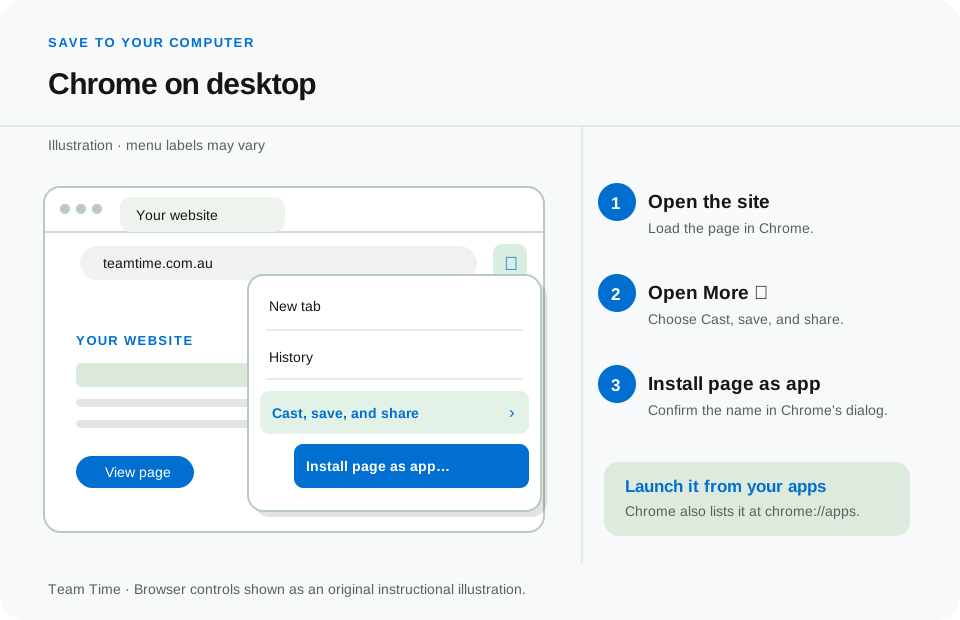
On a computer running Chrome, open Team Time and select the three-dot menu. Choose Cast, save and share, then Install page as app, and follow the on-screen prompt. Chrome may also show an install icon in the address bar. If you prefer an ordinary browser shortcut, choose Create shortcut from the same menu instead. Your computer decides where the new launcher or shortcut appears.
 Opens full-size image in a new tab
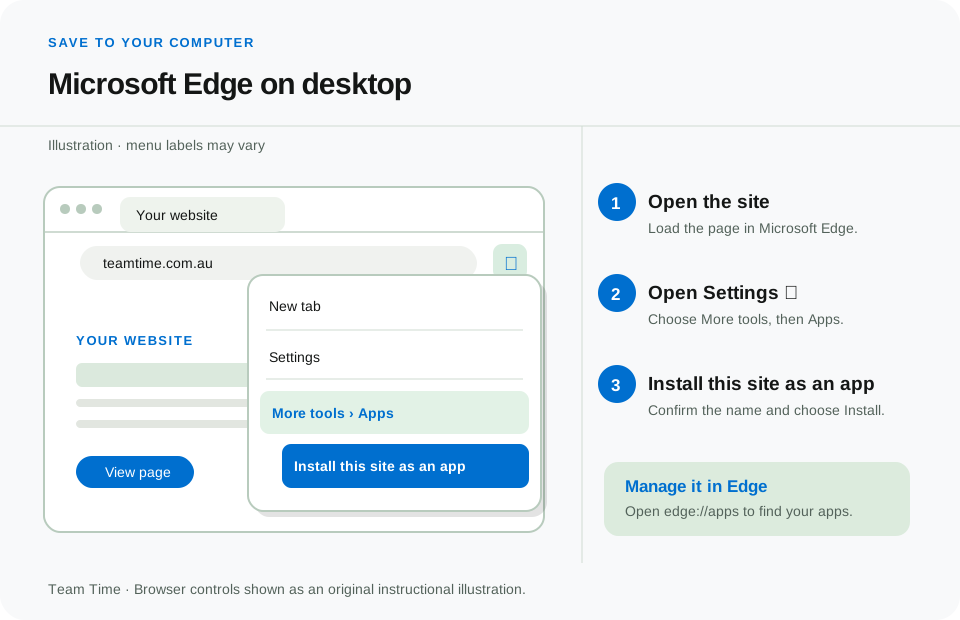
In Microsoft Edge, open Team Time, choose Settings and more → More tools → Apps → Install this site as an app, then confirm. Edge lists saved sites at edge://apps, where you can manage or remove the shortcut.
 Opens full-size image in a new tab
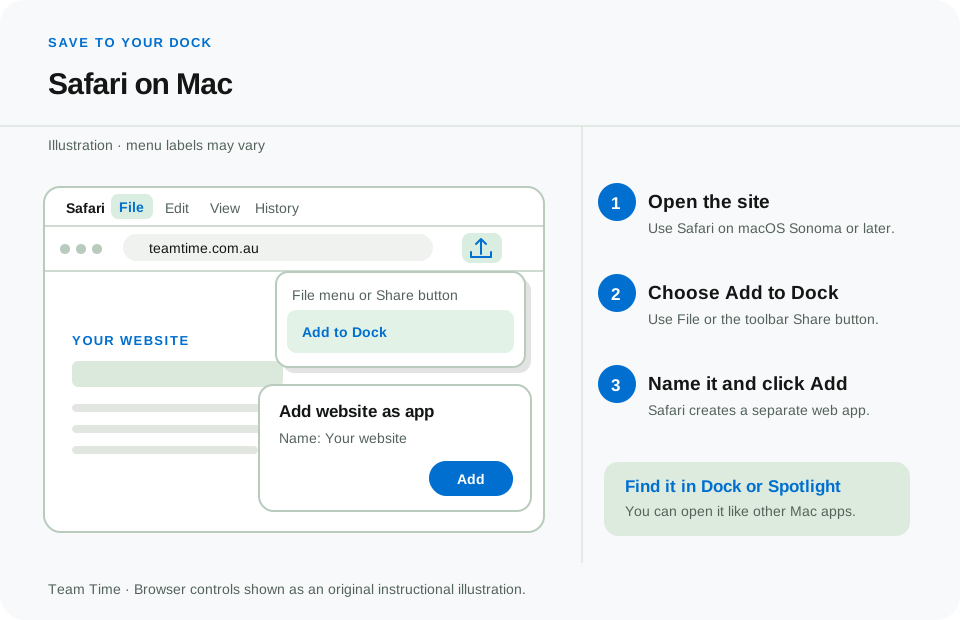
On a Mac using Safari, open Team Time, select the Share button, and choose Add to Dock. Confirm with Add. The Dock icon offers a quick way back to the website. Whether you use a phone or computer, check the current shift inside Team Time before travelling: a saved icon is a convenience, not a copy of the roster.
 Opens full-size image in a new tab
For a few ways to make those shift details useful, read about clear schedules for team members.
Frequently asked questions
Is this a native Team Time app?
No. These steps save a website shortcut or browser-managed web app. Team Time's existing mobile-friendly site is what opens when you tap it.
Will my roster work without internet?
Do not rely on offline access. Connect to the internet and refresh the Team Time page to see current shift details and changes.
Can I remove the icon later?
Yes. Remove it like another home screen shortcut, or use your browser's web app management controls on a computer. Removing the icon does not delete your Team Time account.
Further reading
- Google Chrome: Create shortcuts for websites on Android
- Google Chrome: Create shortcuts for websites on iPhone and iPad
- Google Chrome: Use web apps on a computer
- Microsoft Edge: Install and manage site apps
- Apple: Add a website icon to your iPhone Home Screen
- Apple: Turn a website into an app in Safari on Mac